
 |
Profile | Information about your profile: avatar, name, company name, password management. |
|---|---|---|
 |
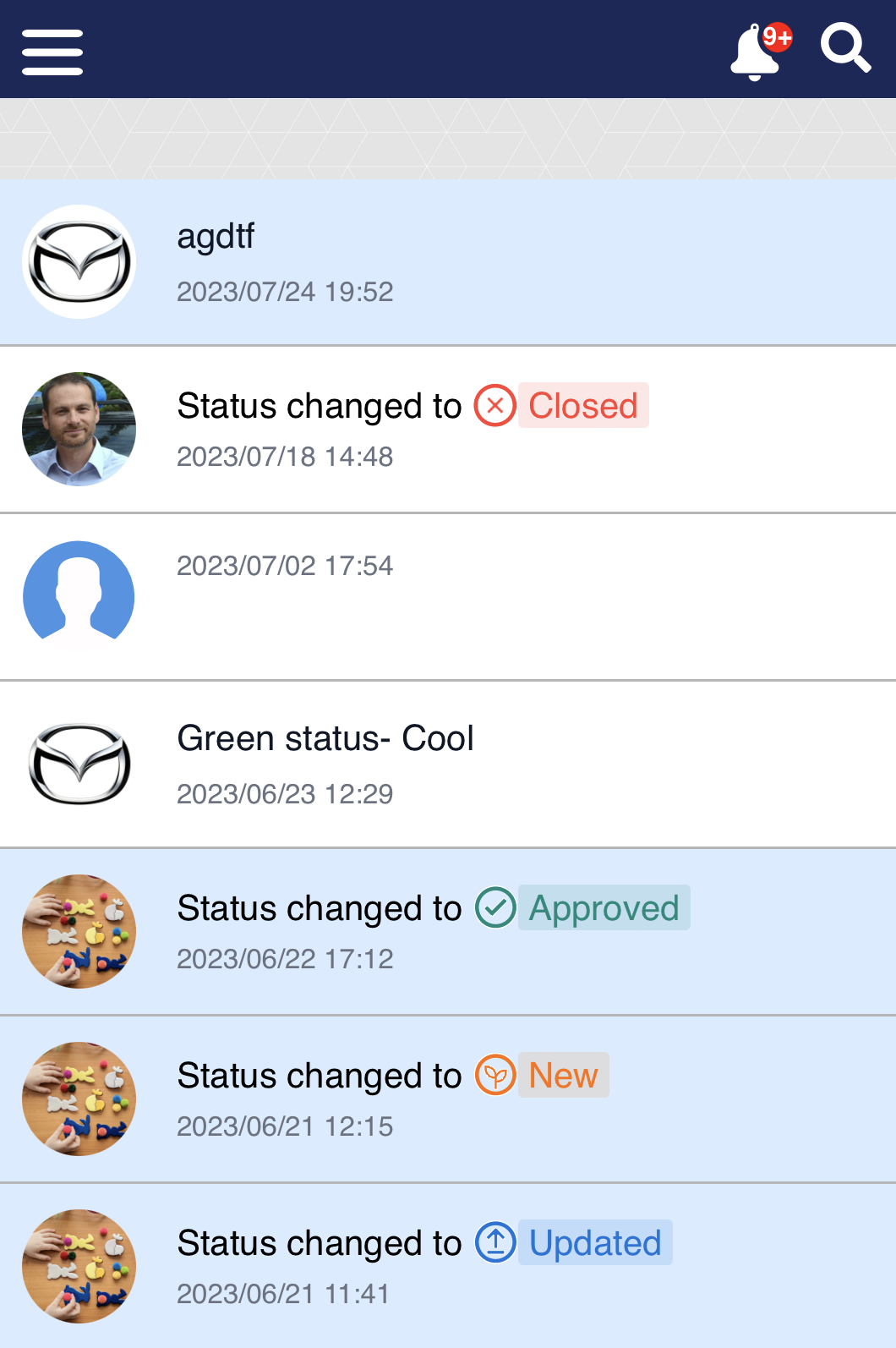
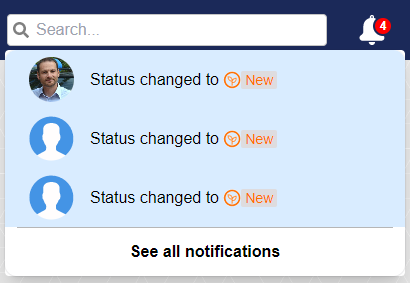
Notifications | All comments on each of your shared models. You can click a comment or а status change and open the respective 3D model. Clicking the bell hides the list of notifications but does not mark the unread notifications as "read". |
| Search | Type to search for 3D models by name. You search in both the publicly shared models and those you have private authorization to view. | |
Managing Your Profile
- To begin editing your Shared Space information, click the profile icon.
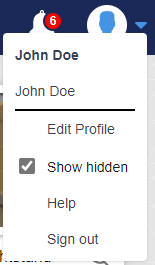
A dropdown list appears listing your current information. You can edit the information by clicking Edit profile.
| Company Name | The name of your company. |
|---|---|
| Edit Profile | Clicking this line takes you to a dialog box, in which you can edit your profile info. See below for details. |
| Show Hidden | Select the check box to make all 3D models that you have chosen not to view to appear in the work area. |
| Pending Requests | This line appears only if you have requests from users who want access to a structure. Lets you know whether there are any requests. Click the line to view and respond to these requests. |
| Sign out | Click to sign out of Shared Space. When you return or want to follow a notification, you will need to sign in. |
Editing the Profile
- When you click Edit profile, a dialog box appears.
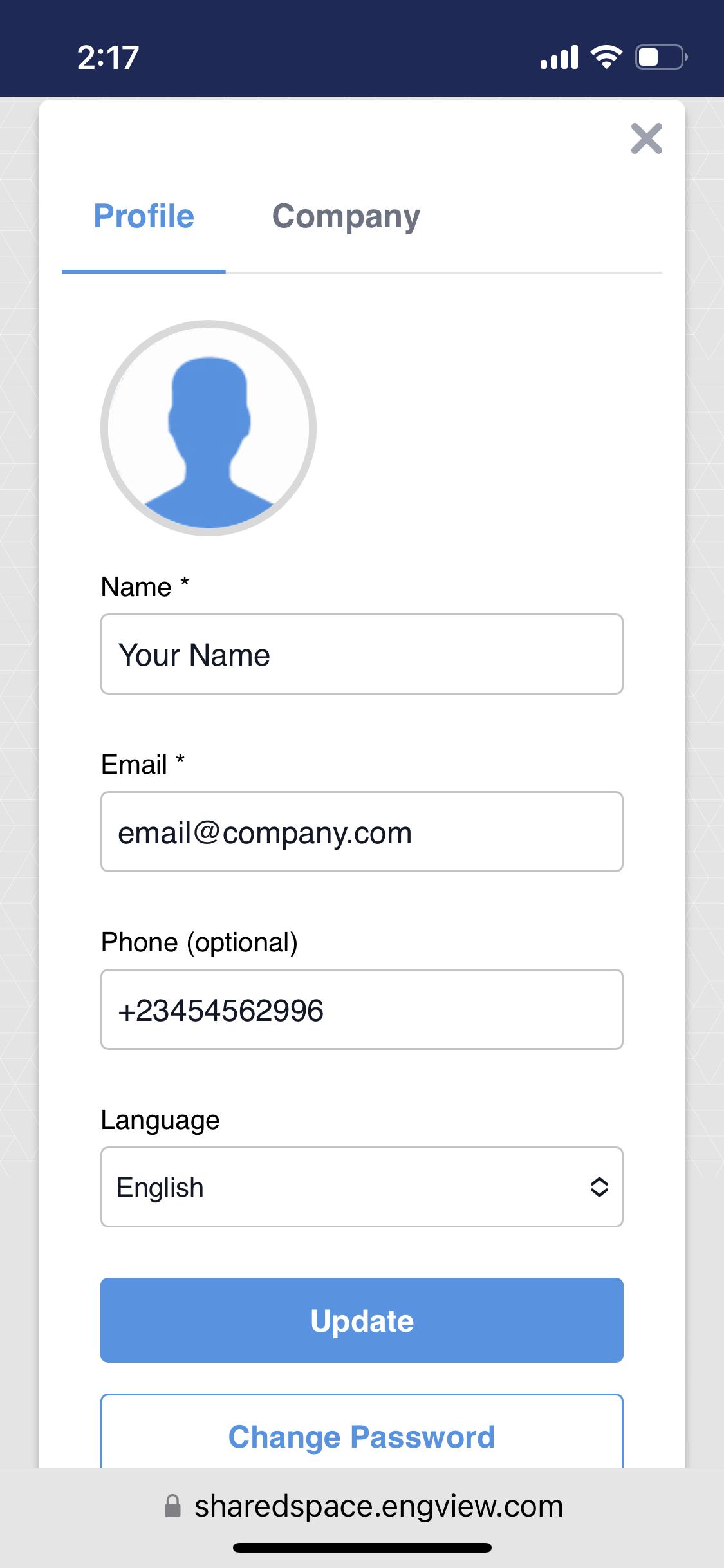
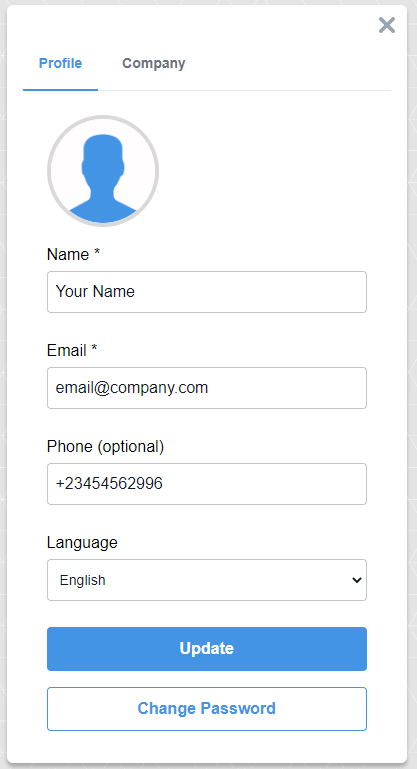
| Avatar | Click to load an image that you want to appear for your profile. |
|---|---|
| Name | The name that will appear on your profile and will be visible to other users. |
| The email account that will serve for communication across Shared Space. | |
| Phone | A phone number that you can be contacted on. |
| Language | Use the dropdown to select the language in which you will be using Shared Space. This is also the language in which Shared Space will send you email notifications. |
| Update | Saves the information entered in the above fields. |
| Change Password | Opens a dialog box in which you can change your current password. |
| Company | Click the Company tab to change the name of your company as it will be visible across the Shared Space environment. IMPORTANT: The company name you enter must be unique. Shared Space does not allow more than one user per company. |
- Edit the information to make it work for you, and then click Update.
Managing the Notifications About Actions to Models
- Click the icon to see your notifications.