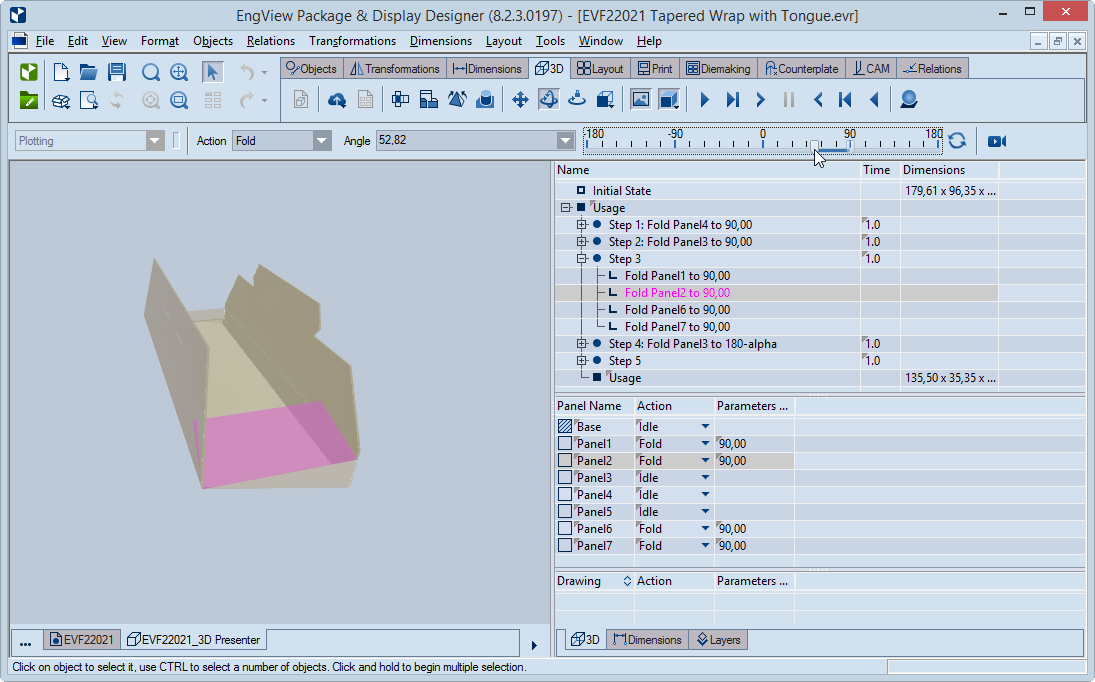
This page tells you how to read the slider and how to use it for setting a folding angle.
About the Folding Angle Slider
These are the properties of the slider:
- The slider consists of:
- Markings that indicate angle values. These are inscribed along the length of a scale that spans the range between minus 180 degrees to plus 180 degrees. The distance between two markings indicates 15 degrees.
- A cursor that points to the current folding angle value on the scale. The value appears also in Angle and in the action's row in the tabular area. Alternatively, if you enter a value in Angle, the cursor moves along the scale to display it.
- A Reset Value button
 ,
which restores a changed angle or distance to its original
value.
,
which restores a changed angle or distance to its original
value.
- The slider is available when you have selected:
- An action in the list of actions.
- A panel in the 3D preview area.

Slider Types
There are four slider types, depending on the action that you are performing:
- Conic bending along radius
Applies to bending along the radius of the object.
 Slider scale follows the actual radius values. The endmost
values produce full-circle folding; halfway point values produce
semi-circle folding. Flat produces a non-bended surface.
Slider scale follows the actual radius values. The endmost
values produce full-circle folding; halfway point values produce
semi-circle folding. Flat produces a non-bended surface.
- Conic bending along a curve guideline
Applies to bending along the guideline set on an object.
 Slider scale follows the normal circular folding. The 360-degree
values produce full-circle folding; 180-degree values produce
semi-circle folding. Flat produces a non-bended surface.
Slider scale follows the normal circular folding. The 360-degree
values produce full-circle folding; 180-degree values produce
semi-circle folding. Flat produces a non-bended surface.
- Folding of panel
Applies to the Fold action, which sets the angle at which a panel folds.
 Dragging the cursor changes
the folding angle.
Dragging the cursor changes
the folding angle.
- Adjusting the position of an inserted part
Applies to the actions Parallel Move, Slider Move, and Perpendicular Move.
 The slider scale follows the actual dimensions in the drawing.
The endmost values move the panel to its end position; zero moves
the panel to the halfway point between the end positions.
The slider scale follows the actual dimensions in the drawing.
The endmost values move the panel to its end position; zero moves
the panel to the halfway point between the end positions.
How to use the slider
- To move the cursor, do any of the following:
- Click the cursor and drag it in the direction that you want. While you drag, the following occurs: (1) a blue line fills the scale's channel, indicating the direction of the movement; (2) the angle value in Angle changes as you drag; (3) in the 3D preview area, the panel starts moving in accordance with the changing angle values.
 Dragging the cursor
- Click in the space above the markings. The cursor moves to where you click and sticks there. No blue line appears in the scale's channel. The following occurs: (1) in the 3D area, the panel moves in accordance to the set value, (2) the value appears in Angle.
 Clicking above the markings to set an angle value
- Use the left and right arrows on your keyboard. You can choose
between two modes:
- Pressing an arrow only. In this mode, the distance value changes by integers.
- Pressing CTRL + [Left, Right] Arrow.The distance value changes only in its decimal part. This lets you fine-tune the positioning of the part.
 Only the integer part of the value changes.
 Only the decimal part of the value changes.
TIP: If you work in inches, you could use the Extended Display Functionality to have EngView convert the fractional display of inches into decimal values.
- (Optional) If after a number of changes to the folding angle,
you want to go back to its original value, click Reset Value
.
Using the button guarantees that no matter what angle changes
you have made, the panel will assume the original position exactly.
- To fix the changed angle value for the action at hand, click into Angle, and then press ENTER. The new value appears also in the highlighted action's row in the tabular area. Note that once you have set a new value and continue using the cursor, clicking the Reset Value button will revert the panel's position to the most recently set value.