- From EngView: On the 3D toolbar, click Upload 3D Drawing to Shared Space
 .
. - From Adobe Illustrator: In the EngView 3D panel, click
 .
.
You can share your 3D models with partners by uploading them on Shared Space, the EngView cloud service where your teammates and customers can view the model, and then get back to you with comments. You upload the 3D model directly from either the EngView software or Adobe Illustrator, and then send an EngView-generated URL to your fellow workers and customers. This page explains the upload procedure.
I. Log-In Credentials for Shared Space
To be able to upload 3D models, use your account for engview.com. If you already have an account, skip this section, and go to Section II: To upload a 3D model. If you do not have an account, follow the steps in this section to have EngView create an account for you.
II. To upload a 3D model (EngView / Adobe Illustrator)
..The Upload to Shared Space dialog box appears.
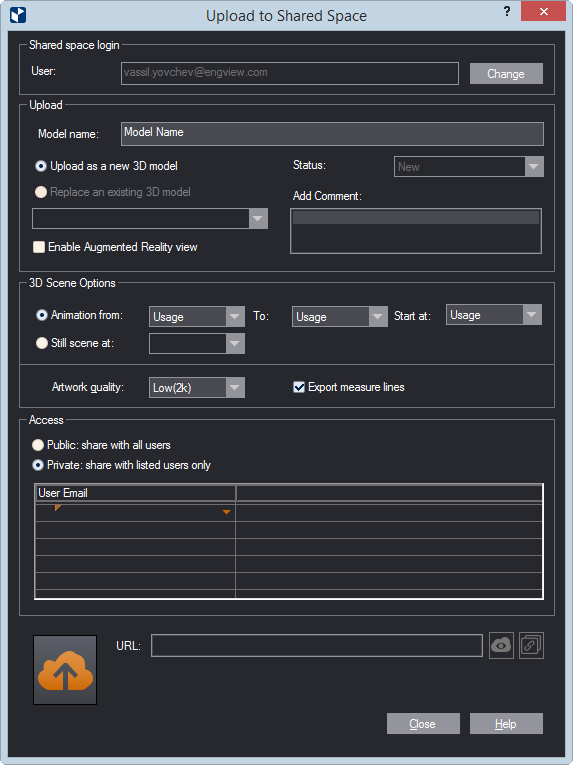
IMPORTANT: The phase starts at the selected phase's end state. That is, if you want the animation to start at the beginning of a phase, in Start at select the name of the previous phase: its end state coincides with the initial state of the phase you need. --End-- indicates the end state of the phase set in To.
You proceed by authorizing who you want to be able to view the uploaded 3D model.
NOTE: You can have multiple uploaded models but it's up to you to decide which partner can view which model. Partners will view only the models they have been authorized to view.
 The recipient has a Shared Space registration.
 The recipient has been sent an email, but does not have a Shared Space registration yet.
 The recipient has not been sent an email and does not have a Shared Space registration.
When you upload the 3D model (Step 10), each user receives an email notification with an URL to the uploaded 3D model. They need to have a Shared Space registration to view it.
 . EngView then does two things:
 .
. , and then send it to partners.
NOTE: This step applies only if you want to send the URL to a specfic partner.